How to Export ChatGPT and Claude Conversations to Markdown (2026)
· Updated
The quickest working method
If you just need a single conversation saved right now, the fastest path that doesn’t require anything extra is a browser console script: open the conversation, press F12, paste a snippet of JavaScript into the console, and a Markdown file downloads to your machine. It’s free, takes about a minute, and leaves no traces anywhere. The downside is that the script is brittle — when OpenAI or Anthropic updates their page markup, the script silently breaks, and you won’t know until your next export fails.
That’s the honest quick answer. The rest of this guide walks through all four methods — the official built-in export, the console script approach, dedicated export extensions, and NorthLab Folders — with real pros and cons for each. Read the whole thing if you want a method that holds up over time or that scales to dozens of chats.
Why Markdown, specifically?
Before picking a method, it’s worth being clear about what you’re actually getting when you export a conversation as Markdown. A good Markdown export preserves headings, bullet lists, numbered lists, code blocks with language tags, GitHub-flavored tables, and in some tools LaTeX math. The result is a plain text file that opens in any editor, renders in Obsidian or Notion, pastes cleanly into a documentation site, and stays readable in ten years when every current app has changed its format.
JSON exports — which some tools produce instead — are complete archives, but they’re not human-readable. You need a second tool to convert them. PDF exports look nice but aren’t editable or searchable in the same programmatic way. Plain text strips out the code block formatting that often makes these conversations worth saving. For most people saving AI conversations for later use, Markdown is the right target format.
Method 1: ChatGPT’s built-in data export
ChatGPT offers a built-in export through your account settings. Go to Settings, then Data Controls, then Export Data. OpenAI will send you an email with a download link. When the email arrives — and it can take up to roughly 24 hours — you download a ZIP file, unzip it, and find a conversations.json file inside.
This is an official, complete archive of everything in your account. It includes every conversation you’ve had, with timestamps and model information. For that reason, it’s genuinely the right choice if your goal is a full backup.
The catch is that conversations.json is not Markdown. It’s a structured JSON file that requires a separate script or tool to convert into something readable. Several open-source converters exist on GitHub, but you’re now adding another step to an already slow process. More practically, this method exports your entire history — you can’t ask it to export just one conversation. If you want a single chat saved as a Markdown document, the built-in export gives you far more than you asked for, in a format you still need to convert.
Claude’s own built-in export options are more limited. Per-conversation Markdown export is the common use case, and neither platform’s built-in tools give you that in one clean step.
Honest verdict: Best for a full account backup. Poor fit for grabbing individual conversations quickly.
Method 2: Browser console scripts
The console script approach is exactly what it sounds like. You open the conversation page, open your browser’s developer tools (F12 or Cmd+Option+I), navigate to the Console tab, paste a snippet of JavaScript, and press enter. The script reads the DOM — the visible structure of the page — converts the conversation to Markdown, and triggers a file download.
Scripts for this purpose are easy to find on GitHub. They handle most of the formatting work: converting bold text, code blocks, headings, and lists from HTML into proper Markdown syntax. A well-written script can produce a clean file in seconds.
This is the method with the lowest barrier to entry. It costs nothing, requires no installation, and leaves no extension with access to your conversations after you’re done. For a one-time export of a specific conversation, it’s a legitimate and private option.
What makes it fragile is the dependency on page structure. OpenAI and Anthropic both update their frontends regularly. When they change a CSS class name, rearrange the DOM, or add a lazy-loading layer to conversation messages, a script that worked last month may silently produce an empty file or throw an error today. You won’t necessarily know the export failed unless you open the file and check it. If you rely on this for anything important — a research session, a long debugging thread — you’re trusting a tool that can break without warning.
The method also requires a bit of technical comfort. Pasting JavaScript into a browser console is not complicated, but it’s not intuitive for most users either. And if you’re not reading the script before you paste it, you’re running arbitrary code on the same page that holds your conversation, which carries its own small risk.
Honest verdict: Genuinely useful for technical users who need a one-off export and don’t want to install anything. Not suitable as a regular workflow.
Method 3: Dedicated export extensions
Several browser extensions exist specifically for exporting AI chat conversations. The most prominent is ChatGPT Exporter (chatgptexporter.com), which supports Markdown, plain text, JSON, and CSV as output formats. It works on Chromium browsers — Chrome, Edge, Brave, and Arc — and is free. The interface adds an export button directly to the ChatGPT page, so the process is genuinely one-click for each format you want.
These tools are easy to use, produce reliable output, and handle the format conversion for you. For someone who regularly needs to export individual conversations, a dedicated export extension removes the friction of the console script method and the delay of the built-in export.
The limitation worth being honest about is scope: export extensions do one thing. They don’t organize your chats, they don’t work on Claude’s website, and they don’t offer bulk export by category. If you’re the kind of user who runs research sessions across dozens of conversations and wants to pull all of them out as organized Markdown files at the end of a project, an export-only tool doesn’t get you there.
The privacy consideration is real, too. Any extension that works on chatgpt.com has the technical access to read the conversations visible on that page. A reputable, well-maintained extension from a developer with a public privacy policy is a reasonable choice. But you’re granting that access, and it’s worth being clear-eyed about that trade-off. For a comparison of how different ChatGPT extensions handle this access question, see our roundup of the best ChatGPT folder extensions.
Honest verdict: The smoothest option for single-chat export on ChatGPT if you’re on a Chromium browser. No Claude support, no bulk export, and the privacy posture depends entirely on the extension you choose.
Method 4: NorthLab Folders
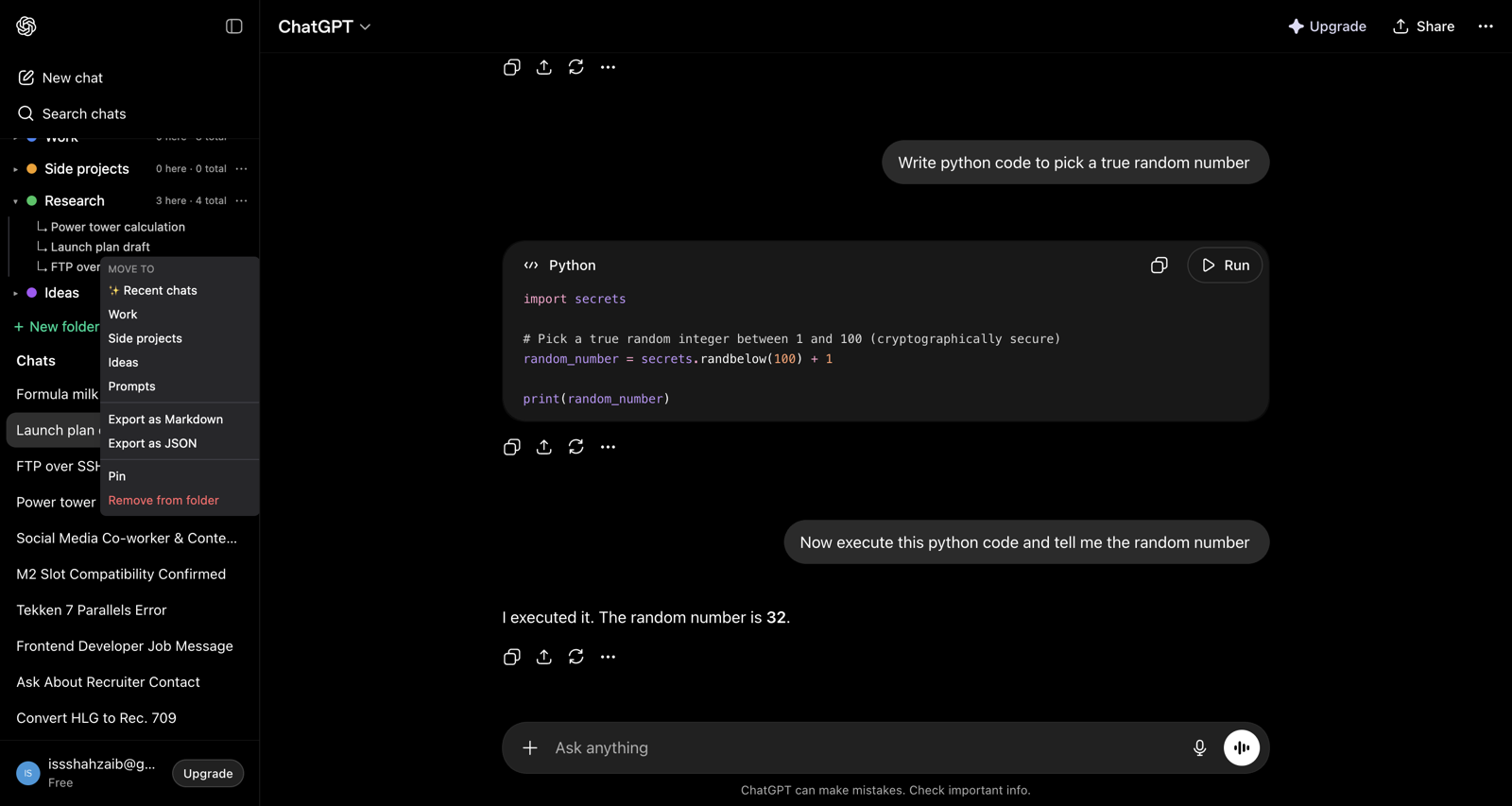
NorthLab Folders approaches export differently because export isn’t its only job. The extension organizes your chats into folders on both chatgpt.com and claude.ai — and the export feature is built into that same tool, so you aren’t granting a separate extension access to your conversations just to download them.
On the free tier, you can copy any conversation as clean Markdown with a single click, and you can export any single conversation to a Markdown or JSON file. That covers the same use case as the dedicated export extensions above. The meaningful difference comes at the Pro tier: you can select an entire folder and bulk-export every conversation in it as a ZIP of individual Markdown files. If you’ve spent a week on a research project with twenty conversation threads organized into a folder, you can pull all twenty out in one action.
The other meaningful difference is Claude. NorthLab Folders is the only export tool in this space that works natively on both chatgpt.com and claude.ai with the same interface. If you split your AI work between the two platforms — which is increasingly common as the models diverge in capability for different tasks — you don’t need separate tools for each site.
On privacy: the export file is generated entirely inside your browser via a local download. Nothing is uploaded to any server. The extension’s only external network call is a license check to Lemon Squeezy when you activate Pro. Your conversation content stays on your machine.
The extension runs on Chromium browsers via the Chrome Web Store and also ships a signed, notarized Safari build for macOS — which matters for Mac users who prefer Safari and otherwise have no options in this space. For more on how to get folders working on Claude specifically, see our guide on how to add folders to Claude.
Honest verdict: The right choice if you want export to be part of a larger workflow — organized folders, bulk export, and Claude support — without giving a second extension access to your chats.
Comparing the four methods
It’s worth putting the trade-offs side by side before you decide.
The built-in export is the only method that gives you a complete account archive, but it’s slow, produces JSON not Markdown, and can’t export a single conversation. Use it for backups, not for day-to-day saving.
The console script is the most private option of the four because it requires no installation at all — but it’s fragile, requires technical confidence, and breaks silently when page markup changes.
Dedicated export extensions like ChatGPT Exporter are the easiest single-chat solution on ChatGPT, but they only work on Chromium, they don’t support Claude, and they’re export-only tools with no organizing layer.
NorthLab Folders requires the extension to be installed and active on both platforms, which is a legitimate additional dependency. In return, you get per-chat and bulk export, Claude support, folder organization, and a strictly local-first privacy model built on the same architecture as the organizing features — not bolted on as an afterthought.
Most users will find that one of the middle two methods covers the majority of their needs. If you’re technical and occasional about it, the console script is hard to beat for simplicity. If you want something reliable, cross-platform, and capable of handling bulk work, NorthLab Folders is the more durable choice.
What about exporting to PDF?
People ask for PDF export almost as often as Markdown, so here’s the honest answer: neither ChatGPT nor Claude has a native PDF button. Your two options are the browser’s print dialog (Cmd/Ctrl+P → Save as PDF) — instant, but long conversations paginate badly and code blocks get clipped — or the two-step route: export to Markdown with any method above, then convert with a Markdown-to-PDF tool (Typora, Obsidian’s export, or pandoc if you’re comfortable in a terminal). The two-step route looks dramatically better for anything with code in it, and you keep the Markdown as the durable copy.
Moving ChatGPT conversations into Claude
A surprising number of people export from ChatGPT specifically to import into Claude — usually mid-migration, or because a long-running piece of work is switching models. There’s no direct import on either side, but Markdown is the bridge:
- Export the conversation as Markdown (any method above).
- For a one-off: paste it into a new Claude chat as context.
- For anything you’ll reference repeatedly: upload the Markdown files as knowledge files in a Claude Project — up to 30 MB each, persistent across every chat in that project. That turns your old ChatGPT research into standing context instead of a wall of pasted text.
The Project route is the one I use; the setup details are in Claude Projects, explained, and if you’re bringing over many files at once, see how to add a whole folder of files to Claude.
A note on what “Markdown export” actually gives you
Whichever method you choose, it helps to set expectations about the output. A well-formed Markdown export of a ChatGPT or Claude conversation will include the full text of your messages and the AI’s responses, code blocks with the correct language tag so they render with syntax highlighting, any tables the AI produced in GitHub-flavored Markdown format, and bold or italic formatting preserved. What it won’t preserve is image outputs from models like DALL-E, because those are binary files that don’t embed into a text document cleanly. Most export tools handle that gracefully by linking to the image URL or noting its absence.
The resulting file is portable in the truest sense. It opens in VS Code, Obsidian, iA Writer, Typora, Notion, Bear, and every other editor with Markdown support. It pastes into GitHub README files, documentation sites, and static site generators. It’s the format that gives your conversations the longest shelf life, which is probably why you were looking for an export method in the first place.
If you’re organizing your AI work more broadly and want the export feature to live inside the same tool that keeps your conversations tidy, take a look at NorthLab Folders.
Frequently asked questions
How do I export a ChatGPT conversation? For your whole account, use Settings → Data Controls → Export Data — OpenAI emails you a ZIP with a conversations.json of everything. For a single chat, the built-in export can’t help; use a console script, a dedicated export extension, or NorthLab Folders to save the conversation as Markdown or JSON in one click.
Can I export a ChatGPT conversation to PDF? There’s no native PDF export. The simplest route is the browser’s print dialog (Cmd/Ctrl+P → Save as PDF), though long chats paginate awkwardly. For cleaner results, export to Markdown first and convert with any Markdown-to-PDF tool — you keep code blocks and formatting intact.
How do I move my ChatGPT conversations into Claude? There’s no direct import. Export the conversation as Markdown, then either paste it into a Claude chat or — better for anything you’ll reference repeatedly — upload the Markdown files as knowledge files in a Claude Project (up to 30 MB each), where every chat in that project can draw on them.
How do I download all my ChatGPT conversations at once? OpenAI’s official export (Settings → Data Controls → Export Data) is the only complete method: a ZIP of your entire history as JSON, delivered by email within about 24 hours. For a readable bulk export of a specific set of chats, NorthLab Folders Pro can export a whole folder as a ZIP of Markdown files.