How to Add Folders to Claude: 4 Ways That Actually Work (2026)
· Updated
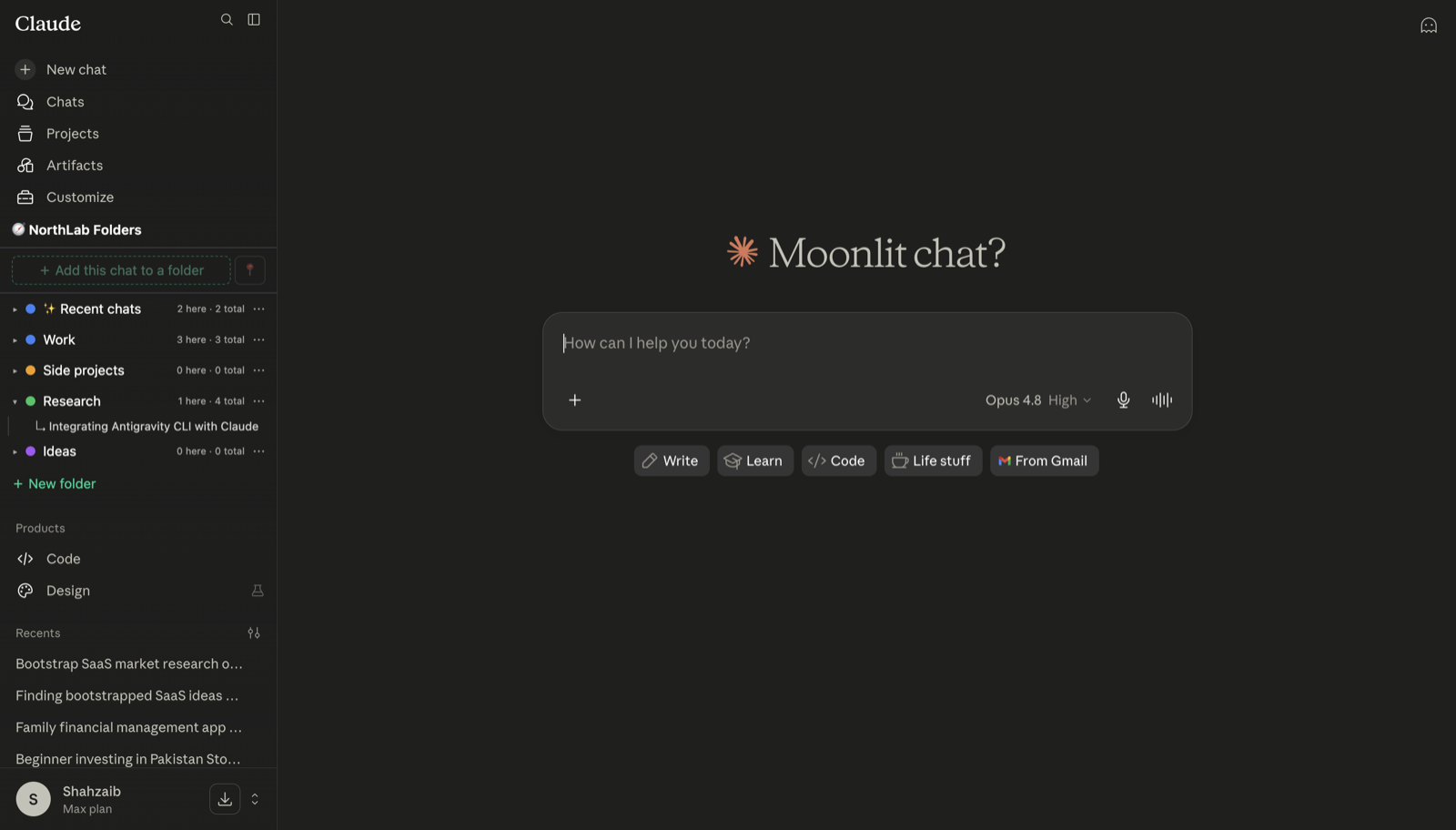
Does Claude have folders?
When you start relying heavily on Anthropic’s AI for your daily work, your sidebar quickly becomes an unmanageable mess of old conversations, code snippets, and half-finished ideas. If you are looking for native Claude folders to tame this chaos, I have to give you the bad news up front: they do not exist. Claude has no native folders for individual chats. The primary organizing primitive that Anthropic provides is called Projects, which operates fundamentally differently than a traditional file system.
As an indie developer, I use Claude every single day. I write application code, draft technical documentation, and outline marketing strategies using the platform. When I first switched over, the lack of a simple, intuitive folder system genuinely frustrated me. I expected to be able to just right-click, create a new folder, and drag my related chats into it. Instead, I found a flat, chronological list that just kept growing longer every day.
Furthermore, individual chats cannot be natively pinned, starred, favorited, or archived to get them out of your immediate view. If you use the platform heavily, your active workspace just becomes a massive timeline of everything you have ever typed into the prompt box.
In this article, I am going to walk you through exactly how to organize Claude chats using the best practical workarounds available in 2026. If you expected a traditional file tree and found none, you still have viable options. We will look at how to properly leverage Claude Projects, how to use a dedicated browser extension that I built specifically to solve this problem, how to implement strict naming conventions for better searchability, and how to set up an export pipeline for external organization. By the end of this guide, you will have a concrete system for keeping your workspace clean and efficient.
Workaround 1: Claude Projects
Anthropic’s answer to workspace organization is Projects. While they are not traditional folders, they are the closest native feature we have, and they are genuinely useful if you understand their constraints and how they are intended to be used.
The good news is that Claude Projects are available on all plans — Free, Pro, Max, Team, and Enterprise. If you are on the Free plan, you are capped at a maximum of 5 projects. This is usually enough to separate broad life categories like “Work,” “Side Projects,” and “Personal.” If you are on any of the paid plans, you get an unlimited number of projects.
A Project acts as an isolated, persistent workspace. You can upload custom knowledge base files up to 30MB each, which Claude will automatically reference for any chat you start inside that specific project. More importantly, Projects support custom project instructions. This is essentially a persistent system prompt that applies to all chats within the project container. For example, if I have a “Python Development” project, I can set the instructions to always output modern, typed Python code and avoid writing redundant explanations. I do not have to repeat that preference in every single chat. This makes Projects far more powerful than a simple organizational folder, even if they lack basic visual hierarchy.
You also do not have to start from scratch if you want to begin using Projects today. Existing chats can be moved into a project retroactively. If you navigate to the Chats history page, you will find a highly useful bulk-select feature. You can check the boxes next to multiple past conversations and click “move to project” (or use bulk-delete to clear out the trash). This bulk management interface is actually quite good, and it makes cleaning up a massive history log relatively painless.
However, Projects fall short if you just want simple file-system organization. First, there is no nesting. You cannot have a parent project with sub-projects inside it. Second, a chat lives in exactly one project; you cannot tag a conversation to appear in multiple places. Third, if you create a new project for every little task just to keep things organized, you will quickly suffer from project sprawl. Your sidebar fills up with dozens of disconnected workspaces.
You can star projects to pin them to the top of your sidebar, and you can archive projects you are no longer actively using, but you still cannot pin or star the individual chats themselves. The individual chat within the project just scrolls down into the abyss as you start new conversations, forcing you to scroll endlessly to find what you were working on last week.
Workaround 2: A Claude folders extension built for the platform
After wrestling with Projects for months and losing track of important conversation threads, I decided to build a proper solution myself. If you look around the browser extension ecosystem, you will notice that most ChatGPT-organizer extensions treat Claude as a complete afterthought, or they skip it entirely. They port over a generic interface, slap it on top of Anthropic’s UI, and call it a day. I wanted something that felt like it belonged there.
That is why I built NorthLab Folders. It treats claude.ai as a first-class platform, integrating directly into the interface and giving you the traditional folder structure you are actually looking for.
With NorthLab Folders, you can create a standard, recognizable hierarchy. You get folders, and if you are on the Pro tier, you get depth-1 subfolders. This means you can create a “Marketing” folder and put a “Blog Posts” subfolder inside it, completely sidestepping the flat structure limitation of Claude Projects. You just file your chats exactly where they belong in the tree, in one click.
Because Claude natively lacks the ability to pin or star individual chats, I built that functionality directly into the extension. You can pin your most important, frequently used chats to the top. I also added explicit date stamps to the chats in the sidebar, so you know exactly when a conversation happened without having to click into it and read the context to jog your memory.
Beyond visual organization, I wanted better data portability. I often need to move code or text out of the browser. NorthLab Folders gives you a one-click “copy chat as Markdown” button, which is perfect for grabbing a conversation and pasting it into your code editor or notes app. The free version also includes single-chat Markdown and JSON exports. If you decide to upgrade to Pro, you get a bulk folder export feature, which allows you to download an entire folder of chats as a ZIP file full of clean Markdown documents.
Visually, the extension is docked inside Claude’s own sidebar and picks up Claude’s own colors and theme, so it blends with the native UI instead of feeling like a clunky third-party overlay sitting on top of your workspace.
Most importantly, I designed it as a local-first tool. Your conversation content never leaves your browser. I do not run an external server that reads your chats, and I do not want to. All of the folder structures and UI modifications happen locally on your own machine, ensuring your sensitive data and proprietary code remain completely private.
Workaround 3: Naming conventions plus bulk cleanup
If you do not want to install a third-party extension, and you do not want to deal with the siloed nature of Projects, your next best option is sheer discipline. You can organize Claude chats by adopting a strict naming convention and relying on Claude’s native search features.
Claude’s sidebar search bar is quite literal: it searches chat titles only, not the message bodies. This means that if you rely on Claude’s auto-generated titles, you are going to have a very hard time finding anything a week from now. The auto-titles are often vague, generic summaries of your first prompt. To fix this, you have to manually rename every single chat as soon as you start it.
I recommend using a strict bracketed prefix system. For instance, if I am working on search engine optimization, I will manually name the chat [SEO] Keyword Research for Blog. If I am debugging a server issue, I will name it [CODE] Express API memory leak. By doing this consistently, you essentially create text-based folders. When you type [CODE] into the sidebar search, it instantly filters your history down to only your programming chats.
If you are on one of the paid plans, you also get access to conversational history search. This is a different mechanism. Instead of just searching titles in the sidebar, you can ask Claude in natural language about past conversations, and it will retrieve them for you. You can ask, “What was the fix we discussed for the database connection last week?” and it will pull up the relevant history. It can search your standalone chats or within a given project, but it cannot cross-reference between different projects — which limits its utility if your work is spread across dozens of them.
The other half of this manual workaround is periodic maintenance. Because Claude does have a bulk-select feature on the Chats history page, you can go in at the end of every week and clean house. It is actually much better than ChatGPT in this respect. You can check the boxes next to all your temporary, throwaway chats and hit bulk-delete. Then, you can select the valuable chats that survived the week and bulk-move them into their appropriate Projects.
The downside to this method is obvious: it requires constant, unwavering text discipline. The moment you are in a rush and forget to rename a chat, or the week you skip your Friday cleanup routine, your sidebar devolves right back into a useless mess.
Workaround 4: Export and organize outside Claude
For some users, trying to organize complex, ongoing conversations inside a web browser is a losing battle. If you are an archivist, a researcher, or just someone who relies heavily on personal knowledge management systems, the best way to handle your chats is to get them off the Anthropic platform entirely.
Instead of fighting with the sidebar UI, you treat Claude as a temporary scratchpad. You do your deep work, generate your code, or brainstorm your ideas, and when the active session is over, you export the valuable parts and leave the chat to eventually be deleted.
Because the NorthLab extension offers a “copy chat as Markdown” feature, or because you can just manually copy and paste the text block by block, you can move your completed conversations directly into an external tool like Obsidian, Notion, Logseq, or even a simple local text editor.
Markdown is the perfect format for this workflow because it preserves the formatting of the AI’s output. It keeps the syntax highlighting in code blocks, retains the bold text, and maintains the structure of lists and tables, while remaining a plain text file. In an application like Obsidian, you can create actual local folders on your hard drive, add metadata tags, link documents together, and run fast full-text searches across years of conversations.
This external approach beats in-app organization when you need your AI chats to live alongside your other project files. If you are writing a book, you do not want your character brainstorming chats trapped in a Claude Project while your actual manuscript lives in Scrivener or Obsidian. You want all of your reference material in the same place.
The primary tradeoff here is friction. You have to manually intervene at the end of every important chat to make sure the data is saved externally. If you forget to run your export, that knowledge stays trapped in the chronological timeline of your Claude history, waiting to be buried by tomorrow’s queries.
What I’d actually do
We have covered the exact mechanisms of Claude Projects, a dedicated folder extension, strict naming conventions, and external text exports. Deciding which route to take depends entirely on how you personally work and what you need from the AI.
If you are a casual user who only logs in a few times a week to ask basic questions, I recommend sticking to Projects and a basic naming convention. The 5-project limit on the Free plan will be plenty for your needs. Create broad categories, rely on the history page to bulk-move your chats when things get messy, and use the project instructions to save time on prompting.
If you are a heavy, multi-project user — if you are building software, managing complex marketing workflows, or juggling multiple freelance clients — you are going to hit the rigid limits of Projects very quickly. The lack of pinning and nesting will actively slow you down. In that case, I recommend using the extension. The ability to create real folders, pin important chats to the top of your view, and easily export them as Markdown makes the web interface behave the way a professional productivity tool should. You can check it out and see if it fits your daily workflow on the NorthLab Folders page.
Finally, if you are a strict archivist, you should build an export pipeline. Never trust a web application to store your critical knowledge long-term. Use the platform for generation and iteration, but use an external tool like Obsidian for permanent preservation.
Finding an organizational system that works for you is the only way to keep the AI from becoming just another source of digital clutter. If you are also juggling an OpenAI subscription for different tasks and running into similar issues over there, you can read my deeper guide on how to organize ChatGPT chats to get that workspace under control as well.
Related Claude guides
- How to Add a Whole Folder of Files to Claude
- Claude Projects, Explained: Folders, Limits & Setup
- Can Claude Read a Folder of Files?
- Claude on Mac: Find Your Projects, Folders & Files
- How to Make a Folder of Chats in Claude
- Can You Make Subfolders in Claude?
Frequently asked questions
Can I move my existing Claude chats into folders?
Yes. With NorthLab Folders you assign any existing conversation to a folder in one click and move it between folders whenever you like — you never have to recreate a chat. Natively, Claude also lets you bulk-select chats on the history page and move them into a Project, but each chat lives in exactly one Project and there is no nesting.
Can I add folders to Claude on a Mac?
Yes. On Chrome, Edge, Brave, Arc, or Opera you install NorthLab Folders from the Chrome Web Store; on macOS you can also run it as a signed, notarized Safari app. The folder sidebar behaves the same on claude.ai in either case.
How many folders can I create — is there a limit?
The free tier gives you three folders, which is enough to separate broad areas of work. Pro removes the limit and adds depth-1 subfolders, so you can nest something like a “Blog posts” folder inside “Marketing.” For comparison, Claude’s own Projects cap the Free plan at five projects.
Do my conversations stay private?
Yes. The extension is local-first: your conversation content never leaves your browser. It stores only folder names and chat IDs, runs no external server, and injects no tracking into Claude. That privacy model was the whole reason I built it instead of using an organizer that pipes your chats through someone else’s servers.