How to Organize ChatGPT Chats: The Ultimate Guide to Sidebar Mess
· Updated
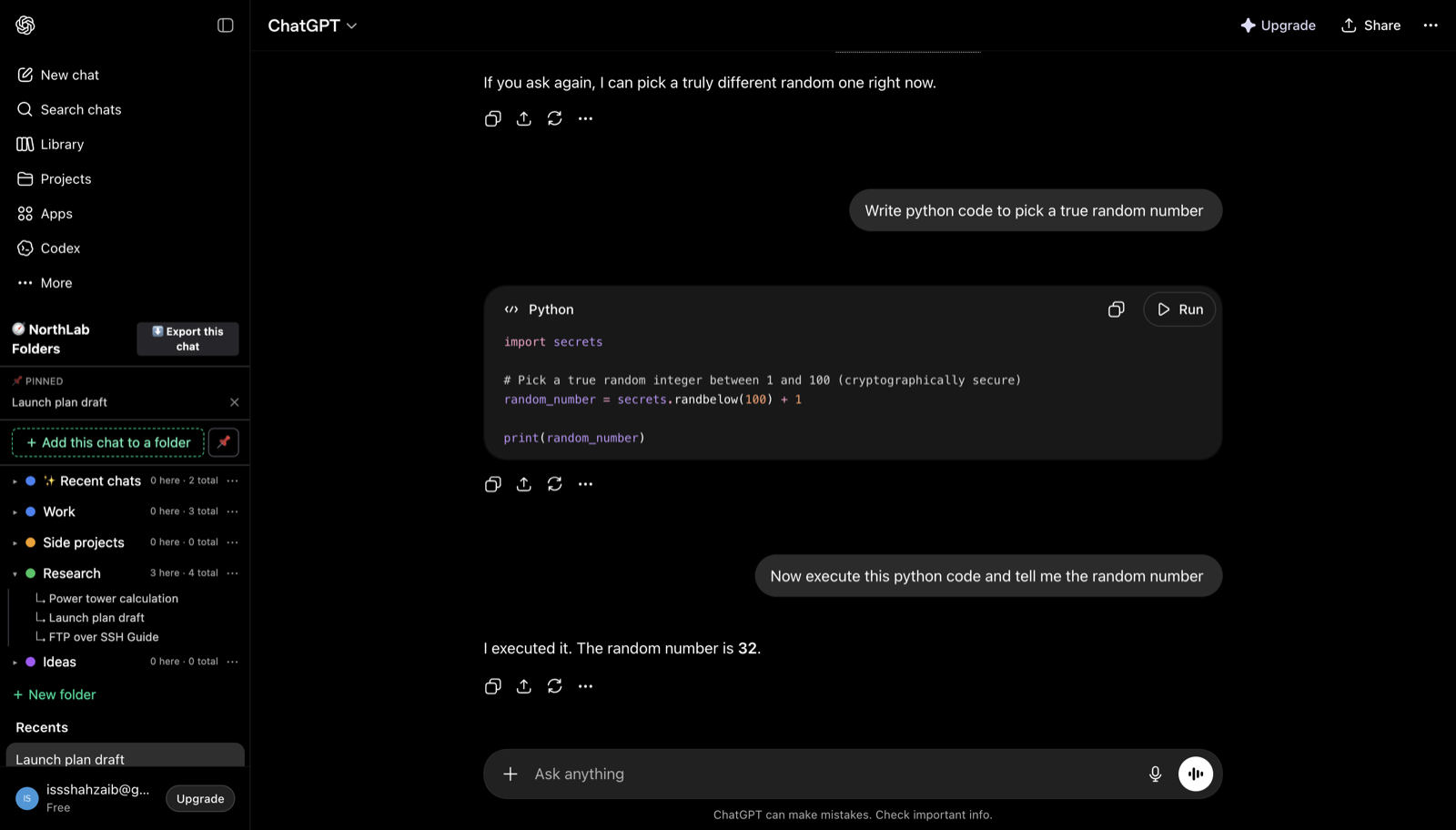
Why your ChatGPT sidebar becomes a mess
If you use AI for programming, writing, or daily research, you eventually hit a wall where you need to figure out how to organize ChatGPT chats. What starts out as a helpful interface quickly turns into an administrative burden. You sit down to continue working on a Python script you started last Tuesday, and you open the left panel. Instead of a neat, structured directory of your ongoing work, you are greeted by a chaotic, flat chronological list. This structural reality is the root cause of the visual clutter. The interface groups your history into vague time buckets like “Today”, “Previous 7 Days”, “Previous 30 Days”, and then dumps everything else into generic month categories like “May” or “April”. Because there are no native folders for general chat history, you suffer from a persistent scroll-forever problem.
You know the conversation exists, and you know roughly what the AI named it, but because the list is flat, you have to manually scroll down, scanning dozens of truncated titles until you spot it. This introduces real cognitive load. Every time you switch contexts between a client project and a personal project, you pay a tax in time and focus just trying to locate your previous context. If you are doing deep technical work, losing your context means losing your train of thought. You are forced to navigate a visual hierarchy that simply does not support complex workflows.
To make matters worse, OpenAI limits the native pinning feature to exactly 3 pinned chats. This is a hard limit programmed directly into the UI. Three pins might be sufficient if you only use the platform casually. But if you are a heavy user, you likely have one chat dedicated to an overarching system prompt, one for an ongoing coding project, and one for daily formatting tasks. When a fourth priority emerges, you are forced to make a compromise and unpin an active workspace. You cannot bypass this 3-pin limit natively. Because finding old chats is so painful and the pin limit is so restrictive, most users develop a “New Chat” reflex. Instead of hunting down the correct thread, you simply hit the new chat button and start over. This creates duplicate contexts, scatters your workflow, and aggressively accelerates the ChatGPT sidebar mess.
You end up with fifty threads named “Python Script Help” and twenty threads named “New Chat”. Your history becomes a graveyard of abandoned prompts rather than a structured library of knowledge.
How to organize ChatGPT chats
Before we get into specific tools and tactical workflows, we have to look at the mechanical constraints of the platform. If you want to know how to organize ChatGPT chats effectively, you have to accept that the native interface is not designed for file-tree management. It is designed as a continuous, transient feed. Therefore, organizing your history requires either fighting the UI through strict naming discipline, adopting OpenAI’s isolated workspace model, injecting a folder UI via browser extensions, or extracting your data entirely to your local machine.
As an indie developer who has spent a significant amount of time focused on this specific UX problem, I have tested all of these workflows. In this guide, I will break down the exact mechanical limits of the native features, outline the no-tool approaches, explain how local file extraction works, and transparently discuss where third-party extensions fit into the stack. I will also provide the exact technical specifications of the platform’s limits so you can design a system that will not break when you hit 500 or 1,000 conversations. There is no perfect, native way to organize ChatGPT, but by combining these methods, you can build a system that keeps your workspace clean.
Method 1: ChatGPT Projects
OpenAI introduced Projects as their primary native solution to context management. Projects serve as dedicated, isolated workspaces within the OpenAI ecosystem, allowing you to segment specific conversations away from your primary timeline and attach reference files to a focused context. If you are trying to organize ChatGPT chats natively, this is where you start.
Availability and file limits across tiers
One of the most important facts about ChatGPT Projects is that the feature is available on all tiers. This includes Free, Plus, Go, Pro, Team, Business, and Enterprise plans. However, the constraints placed on these projects vary wildly depending on your subscription, specifically regarding file uploads.
If you upload reference documents to a project to ground the AI’s knowledge, you must adhere to strict caps. Free users are limited to 5 files per project. Plus and Go users receive a higher limit of 25 files per project. Pro, Team, Business, and Enterprise users get a ceiling of 40 files per project. Regardless of your tier, the maximum size per individual file is 512MB. If you hit your tier’s file limit, you hit a hard wall. You have to manually delete an older file before the system will allow you to upload a new one.
How to move existing conversations
When you want to organize your existing history, OpenAI provides two distinct ways to move a chat into a project. The first method is visual: you can click and hold on a chat in your chronological list, drag it over to the project name in the sidebar, and release it. The UI will highlight the project to indicate a successful drop. If dragging feels clunky—which it often does when you have a massive list of chats and need to scroll while dragging—you can use the menu method. Click the ”…” icon next to any chat in the sidebar, select “Move to project” from the dropdown list, and choose your destination from the modal window.
The fatal flaw: Custom GPTs
There is one massive limitation with ChatGPT Projects that trips up almost every heavy user: chats created with custom GPTs cannot be moved into projects. If you have spent hours building a custom GPT tuned to write your company’s newsletters, and you have dozens of chats using that specific custom GPT, all of those conversations are permanently stuck in your main chronological timeline. You cannot drag them into a project. You cannot use the move menu. The UI simply will not allow it. This creates a fragmented workflow where your standard model chats live neatly inside projects, but your highly specialized custom GPT chats remain scattered across the default interface.
Visibility caps and project architecture
If you plan to use Projects to create a massive folder tree, you will run into a UI constraint. There is no officially published cap on the total number of projects you can create, but users consistently report that the sidebar only shows approximately 20 projects. If you create 50 projects, the sidebar truncates them, making the older ones difficult to access without manual searching. Furthermore, projects are not true folders. You cannot nest them. There are no subfolders. A project is simply an isolated room, and once a chat is inside that room, it is removed from your main timeline.
Comparing Claude Projects
If you split your work across different AI models, it is worth comparing this to Claude.ai Projects. Anthropic makes Projects available on all plans. The Free tier is capped at 5 projects total. To get unlimited projects, you have to upgrade to Pro, Max, or Enterprise tiers. The per-file upload limit on Claude is significantly smaller at 30MB per file, compared to OpenAI’s 512MB limit. However, Claude includes a feature that heavily impacts organization: custom project instructions. You can define a persistent system prompt for the entire project, which changes how you interact with the grouped chats. For Claude specifics, check Anthropic’s support docs.
Method 2: A ChatGPT folders extension — the true folders experience
Because OpenAI has never shipped native folders for general chat history, you have to look outside the native UI if you want standard file-tree organization. A ChatGPT folders extension fills this void by injecting its own UI to group items, bypassing the native chronological list entirely. This is how you achieve a true folders experience — and for a side-by-side look at the main options, see our roundup of the best ChatGPT folder extensions.
Building a local-first solution
As an indie developer, the lack of native folders drove me to build a tool specifically to solve the ChatGPT sidebar mess. I wanted something that felt native but fixed the structural flaws of a flat chronological list. That tool is NorthLab Folders.
When evaluating extensions, architecture matters. NorthLab Folders operates on a local-first architecture. This means your conversation content never leaves the browser. There are no accounts and no NorthLab servers reading your chats — the folder structure is metadata stored locally in your browser storage, and the extension only reads your conversations inside your own authenticated session, on your machine.
Core features for heavy users
NorthLab Folders provides standard folders and subfolders, allowing you to nest contexts exactly like you would on a local operating system. It also allows you to pin chats directly within the extension UI, entirely bypassing OpenAI’s hard 3-pin limit. You can pin 10, 20, or 50 chats if your workflow requires it. To help combat the scroll-forever problem, the extension shows date stamps next to your conversations so you know exactly when a thread was last active without having to click into it. Because I use both major AI platforms daily, the extension works on both ChatGPT and Claude, allowing you to maintain a unified organizational structure across both sites.
Exporting your data
Data portability is critical when you rely on third-party tools. NorthLab Folders includes a feature to copy a chat as Markdown directly to your clipboard. The free tier gives you 3 free folders and includes single-chat Markdown/JSON export for free. If you are a heavy user, the Pro tier provides unlimited folders, unlocks subfolders, and includes a bulk folder export feature that downloads an entire folder as a zip of Markdown files, making it trivial to back up specific projects.
Honest alternatives in the space
If my extension does not fit your specific needs, there are other honest alternatives available. Superpower ChatGPT is a massive extension that includes folders, prompt management, and an entirely custom UI. It is highly capable and feature-rich, though it can feel heavy if you only want simple grouping. Easy Folders is another alternative that takes a very lightweight, minimal approach, focusing purely on adding basic directories.
The primary downside to using any browser extension is dependency. You are relying on a third-party developer to maintain the tool. Whenever OpenAI updates their frontend, extensions can temporarily break until the developer pushes a patch. If you are comfortable with that trade-off, extensions remain the only way to get actual folders and subfolders.
Method 3: Archiving plus naming conventions — the no-tool approach
If you refuse to install browser extensions and you find Projects too restrictive, your only remaining native option is the no-tool approach. This method relies entirely on text discipline, manual data entry, and the native archive functionality. When you realize you need to organize ChatGPT chats manually, you have to create a visual hierarchy using plain text strings.
Designing a naming convention
By default, the AI attempts to read your first prompt and auto-generates a title. These titles are usually generic and unhelpful. To organize ChatGPT effectively, you must rename the chat immediately after creating it. You do this by establishing a strict naming scheme using prefixes, brackets, and context tags.
Practical naming conventions include:
[PROJECT-ALPHA] Data parsing script[WRITING] Blog post draft 3[LEARN] Rust borrow checker[CLIENT-SMITH] API Route setup[PERSONAL] Weekly meal plan
By forcing a prefix like [WRITING] onto the title, you give your eyes an anchor when you are scrolling down the flat chronological list. It creates a scannable structure out of pure text.
The archive workflow
The second half of the no-tool approach is aggressive archiving. You cannot leave finished chats in the sidebar. Once a task is finished, you must click the ”…” menu next to the chat in the sidebar and click Archive. This removes it from the flat chronological list, hiding it from view. Archived chats do not disappear entirely; they live under Settings → Data Controls. You can navigate there to view them or unarchive them later if you need to resurrect the context.
The bulk archive problem
This system breaks down heavily under scale because there is a real flaw in the native interface: there is no selective bulk archive or selective bulk delete in ChatGPT.
If your sidebar is cluttered with 80 abandoned “New Chat” instances and 20 important ongoing conversations, you cannot check a box next to the 80 useless chats and hit delete in one batch. Your only native options are the global, nuclear buttons located under Settings → Data Controls: “Archive all chats” or “Delete all chats”.
Clicking “Archive all chats” sweeps your entire sidebar clean, moving absolutely everything into the archive. You then have to manually unarchive your 20 important threads one by one. Conversely, if you want to clean up the mess manually from the sidebar, you have to click the ”…” menu, click Archive, wait for the UI to refresh, and repeat this 80 times. Because you cannot selectively bulk manage your history, maintaining a clean sidebar requires immense discipline. You must adopt a weekly routine where you sit down, audit your sidebar, and manually archive dead threads one single item at a time. For a heavy user, this administrative overhead is exhausting.
Method 4: Exporting chats to a local knowledge base
For many developers and researchers, the ultimate way to handle the ChatGPT sidebar mess is to stop treating the web interface as a filing cabinet entirely. Instead, treat the web UI as a temporary scratchpad. When a conversation reaches a conclusion, you extract the data and export the valuable outputs to a local knowledge base.
The native export process
OpenAI provides a native export tool to get your data out of the system. You can access this by navigating to Settings → Data controls → Export. When you click this, you submit a request for an archive of your account. You can read more about data controls on the official OpenAI help documentation.
Officially, OpenAI states this export process can take up to 7 days to compile. In practical daily usage, you will usually receive an email containing your download link within hours to a day. You must act quickly when it arrives, because the emailed download link expires after 24 hours. If you miss the window, you have to request a new export and wait again.
Dissecting the ZIP file
When you extract the downloaded ZIP file, you will find several specific files and directories.
chat.html: This is a massive, single HTML page containing your entire account history rendered into a readable format. You can open it in a browser and use Ctrl+F to search for old prompts, but it becomes sluggish if you have thousands of messages.conversations.json: This is the raw structured data of your chats. It contains system prompts, user messages, AI responses, and metadata in JSON format. If you are a developer looking to write a custom parsing script to build your own database, this is the file you will target.user.json: This file contains your account and profile metadata.message_feedback.json: This tracks the thumbs up or thumbs down ratings you have given to AI responses.media: This folder stores generated images and files you have uploaded to the platform. Depending on your usage, it can easily be several gigabytes in size.
Single-chat Markdown export vs native export
Because the native export is heavy, slow to generate, and difficult to read without writing parsing scripts for the JSON file, per-chat Markdown export is often a better daily workflow. Using an extension to copy a chat as Markdown allows you to move individual, clean text files directly into tools like Obsidian or Notion.
If you use Obsidian, you can create actual local folders on your hard drive. When a chat is done, you copy it as Markdown and paste it into Obsidian. Because Obsidian indexes local files instantly, you gain instantaneous, offline, full-text search across every conversation you have ever exported. You can use Obsidian tags to create relationships between chats that the native flat list could never support. If you use Notion, you can build a structured database table, pasting your Markdown exports into rows with custom metadata columns.
Choosing the right workflow
There is no single correct way to organize ChatGPT chats. The workflow you choose depends entirely on your technical comfort level, your budget, and how heavily you rely on the platform. Reviewing the mechanical constraints we have covered, you have to make a trade-off between setup time, native stability, and feature depth.
Comparing the workflows
| Workflow / Tool | Setup Time | Core Feature | Biggest Constraint | Cost |
|---|---|---|---|---|
| ChatGPT Projects | Low | Native isolated workspaces | Custom GPT chats cannot be moved | Free (tier upload limits apply) |
| Browser Extensions | Low | True folder file-tree & subfolders | Dependent on platform UI stability | Free / Paid Pro |
| Naming Conventions | High | Visual scannability via text | No selective bulk archive/delete | Free |
| Local Export | Medium | Offline, searchable knowledge base | Requires managing external tools | Free |
Practical recommendations
If you are a casual user who only logs in a few times a week, do not overcomplicate your life. You do not need a local knowledge base, and you probably do not need an extension. Focus on the no-tool approach. Apply basic naming conventions and use the archive button aggressively to keep your timeline clean.
If you are an enterprise employee on a Team or Enterprise plan, you should lean heavily into ChatGPT Projects. You have the maximum 40-file limit, which is powerful for corporate context sharing. Since you likely cannot install third-party extensions due to strict corporate IT policies, Projects are your best native option for grouping work.
If you are a heavy coder or an indie developer who lives in the AI interface, you need true folders. Relying on Projects will frustrate you because of the ~20 project sidebar visibility limit, the custom GPT restrictions, and the inability to nest contexts. You should install a browser extension to get subfolders, bypass the 3-pin limit, and implement a local-first file tree.
If you are a researcher or writer whose output is highly valuable text, your priority is data extraction. The web interface is too volatile and unstructured for permanent storage. You should utilize Markdown exports constantly, piping your conversations into a local system like Obsidian. Rely on the native ZIP export only as a monthly automated backup.
Whichever workflow you land on, two sibling guides pair well with it: how to search your ChatGPT history properly — organization and search compound each other — and how to delete your ChatGPT history without losing the keepers once your folders make it obvious what’s junk.
Frequently asked questions
Does ChatGPT have folders? Not for general chat history. ChatGPT offers Projects (isolated workspaces) and a 3-chat pin limit, but the main sidebar remains a flat chronological list. Real folders and subfolders require a browser extension that injects its own organizing UI.
What is the best ChatGPT folders extension? It depends on what you value. Superpower ChatGPT is the feature-heavy option, Easy Folders is the minimal one, and NorthLab Folders (ours) is the local-first option — folders, subfolders, unlimited pins, and search across ChatGPT, Claude, and Gemini with nothing leaving your browser.
How do I organize ChatGPT chats for free? Combine the native tools: move ongoing work into Projects, archive finished chats aggressively, rename keepers with a consistent prefix system, and pin your top three. Free folder-extension tiers (NorthLab Folders includes 3 free folders) cover most casual setups without paying.
Can I search my ChatGPT chats? Yes — press Cmd+K (Ctrl+K on Windows) or click the sidebar magnifying glass to search titles and message content. It’s exact-keyword only, with no filters or folder scoping, which is why organizing chats still matters even with search available.
Pick the system that matches your workload, set it up today, and stick to it. The ChatGPT sidebar mess is entirely preventable if you apply strict mechanical organization.