How to Duplicate a ChatGPT Chat (Branch in New Chat)
Yes, you can duplicate a ChatGPT chat. The built-in way is Branch in new chat: it copies the conversation up to any message you choose into a brand-new chat, and your original stays exactly as it was. I use it constantly when a long thread is going well and I want to try a risky direction without wrecking it.
Here’s how it works, what to do when the option isn’t there, and the workaround for Claude, which doesn’t have it.
How to duplicate or branch a chat in ChatGPT
- Open the conversation on chatgpt.com.
- Hover over the message where you want the copy to end. It can be your prompt or ChatGPT’s reply.
- Click More actions (⋯) in that message’s action row.
- Choose Branch in new chat.
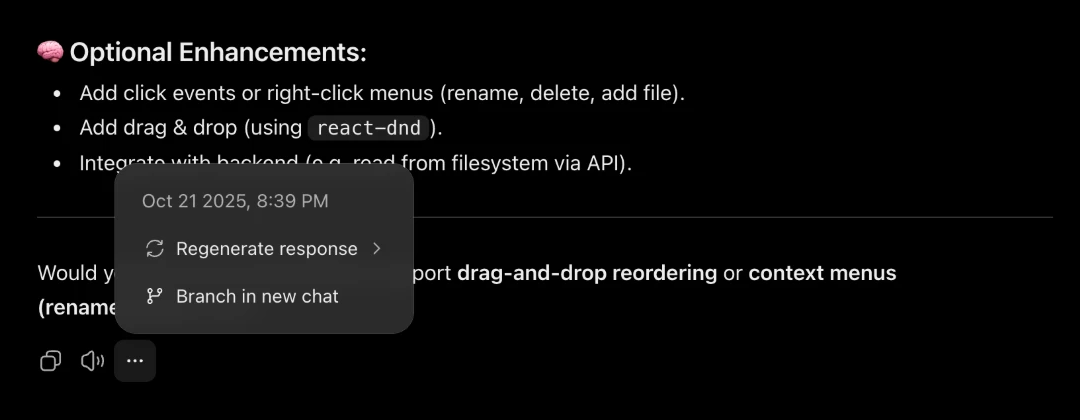
ChatGPT opens a new conversation that contains everything up to that message. To duplicate the entire chat, branch from the last message. To rewind and try again from an earlier point, branch from that earlier message instead.
The branch shows up as its own chat in your sidebar. If the original lives inside a Project, the branch stays in that Project’s chat list.
What branching actually copies
The branch takes the full message history up to the point you picked, so ChatGPT has the same context it had in the original. From there the two chats are independent: anything you say in the branch never touches the original, and vice versa.
That makes branching the right tool for three jobs:
- Trying an alternative. A different tone for a draft, a different architecture for code, a “what if” on a plan.
- Splitting a chat that grew two topics. Branch at the point the conversation forked and continue each topic in its own chat.
- Protecting a good thread. Before an experiment that might derail it, branch first and experiment in the copy.
Branching vs editing a message
These two get confused because both create “branches”:
| Edit a message | Branch in new chat | |
|---|---|---|
| Where the alternative lives | Inside the same chat | A new, separate chat |
| How you switch | Arrows under the edited message | Your sidebar |
| Original conversation | Still there, as the other version | Untouched |
| Which messages | Only your own prompts | Your prompts and ChatGPT’s replies |
| Best for | Quick retries of one prompt | Longer explorations you’ll keep |
If you only want to reword one prompt and compare answers, editing is faster. If you’ll keep working in the alternative for a while, branch, so each direction has its own chat you can find later.
Branch in new chat missing or not working?
The searches for “branch not working” are real, and the cause is usually one of these:
- You’re in a mobile or desktop app. OpenAI launched branching on the web. If an app doesn’t show it, open the chat on chatgpt.com in a browser.
- You’re signed out. Branching is for logged-in users.
- You’re looking for a separate button. Branching isn’t its own icon. It’s an item inside More actions (⋯), at the end of the message’s action row. On your own prompts, hover to reveal the row.
- A stale tab. Reload the page. Long-open tabs sometimes miss newer menu items.
If none of that helps, use the fallback below. It works everywhere, including in another AI tool.
The fallback: copy the whole chat, paste it into a new one
Copy the conversation as text, start a new chat, paste it in, and tell the model “This is our previous conversation. Continue from here.” The new chat gets the context, and you can paste the same text into Claude or a doc. It’s a weaker copy than a real branch, though: the whole history arrives as one long message, uploaded files don’t come along, and a very long chat eats into the new chat’s context window. Use it when branching isn’t available.
The catch is that ChatGPT’s copy button only copies one reply. Selecting a whole long thread by hand is slow and drags in button labels. That’s the gap we built a feature for. Full disclosure: we make NorthLab Folders, an extension whose free Copy as Markdown action copies the entire conversation, your prompts included, as clean Markdown in one click, on both chatgpt.com and claude.ai. It runs in your browser and sends nothing to a server. The formatting side is covered in how to copy a ChatGPT conversation.
Can you duplicate a chat in Claude?
Not natively. Claude has no duplicate or “branch in new chat” button. What it does have is in-chat branching: edit one of your earlier messages and Claude starts an alternate path from there, with arrows to switch between versions. It’s useful for retries, but both versions stay inside one conversation.
For a real duplicate in Claude, use the copy-and-paste fallback. Copy the conversation as Markdown, and paste it into a new chat. If you want that context available in every future chat, start the chat inside a Project or add the Markdown to the Project’s knowledge. If you do this often, a Project is the cleaner home. See Claude Projects vs chats for when each makes sense.
Keep your branches from burying the sidebar
Branching is cheap, so the sidebar fills up fast with chats that have near-identical titles, and there’s no built-in way to keep a chat and its branches together outside of a Project.
What works for me is renaming each branch for the direction it took, and dropping the original and its branches into one folder. That’s what NorthLab Folders is for: real folders in the ChatGPT and Claude sidebars. You file the chats yourself (it doesn’t detect branches automatically), and they stay together instead of scattering through your history. More on that in how to organize ChatGPT chats.
Frequently asked questions
Can you duplicate a chat in ChatGPT?
Yes. On chatgpt.com, hover over a message, click More actions (⋯) and choose Branch in new chat. ChatGPT creates a separate conversation containing everything up to that message and leaves the original untouched. Branch from the last message to duplicate the whole chat.
How do you branch a chat in ChatGPT?
Open the chat on chatgpt.com, hover over any message (yours or ChatGPT’s), click More actions (⋯) and select Branch in new chat. The branch opens as a separate conversation starting from that message.
What does “Branch in new chat” do in ChatGPT?
It forks the conversation at the message you pick. The new chat carries the full history up to that point, so you can take it in a different direction, while the original keeps going on its own. The two chats are independent from then on.
Why can’t I see Branch in new chat?
OpenAI launched branching on the web for logged-in users, so it may be missing in the mobile apps or when you’re signed out. Open the chat on chatgpt.com in a browser, make sure you’re signed in, and open the More actions (⋯) menu in the message’s action row. Branching is an item inside that menu, not a standalone icon.
Is branching the same as editing a message?
No. Editing an earlier prompt creates an alternate version inside the same chat, and you flip between versions with the arrows under the message. Branch in new chat creates a second, separate conversation in your sidebar.
Can you duplicate a chat in Claude?
Not natively. Claude has no duplicate or branch-to-new-chat button. Editing a message creates an in-chat branch you can toggle between. To get a true copy, copy the conversation as Markdown and paste it into a new chat or a Project.